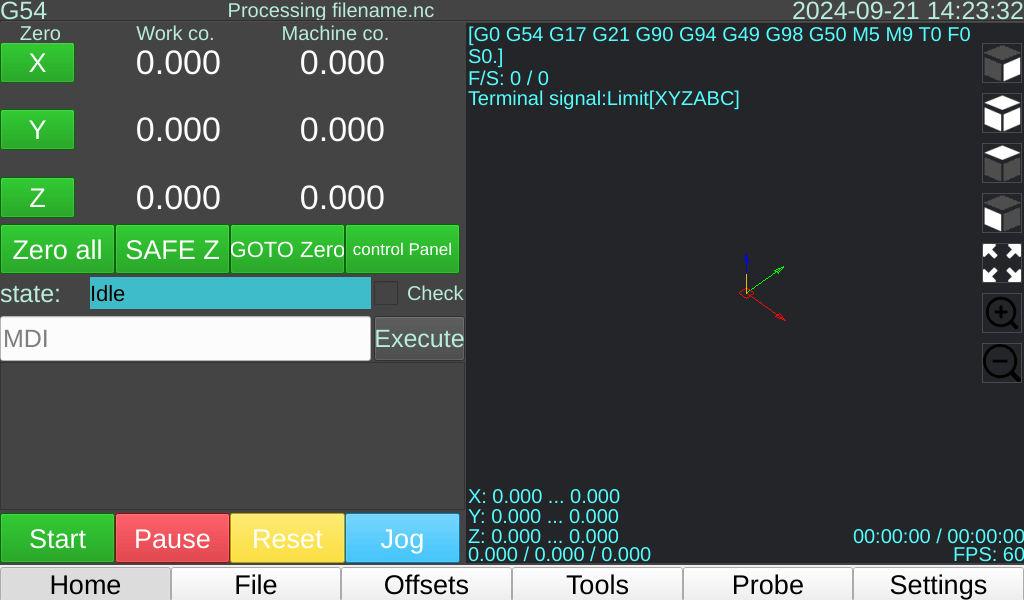
After turning on the device, you will see the following screen:
MDI #
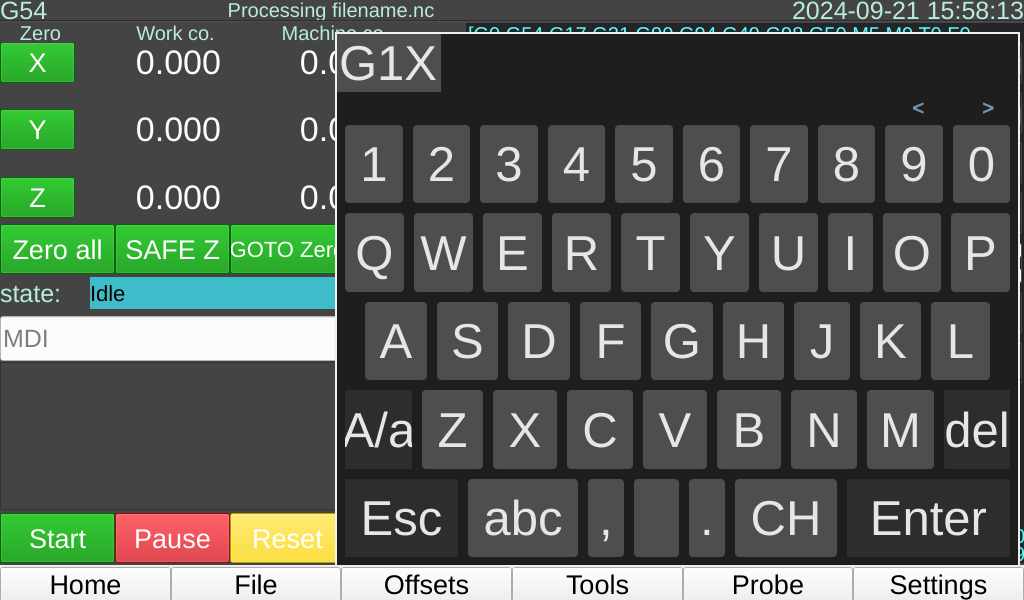
Click on the MDI input box, and a screen soft keyboard will pop up. Enter a segment of G-code, click Execute, and your G-code will run.
G-code File Loading/Execution #
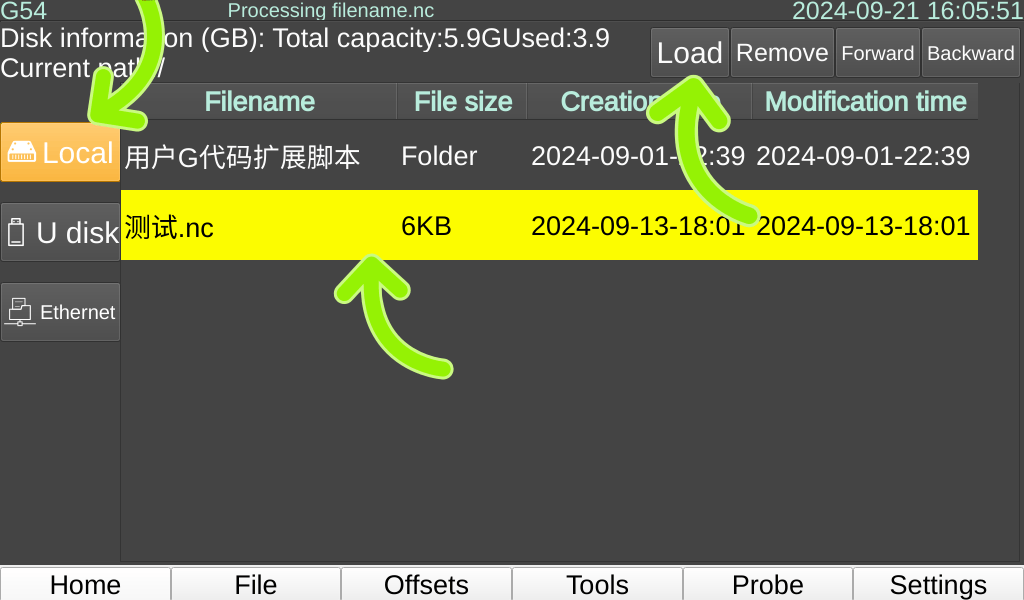
Click on “Locadl” on the left, then select a file. Once selected, the entire row of the file will turn yellow. Click “Load” to load this file.
After loading is complete, it will automatically return to the homepage.
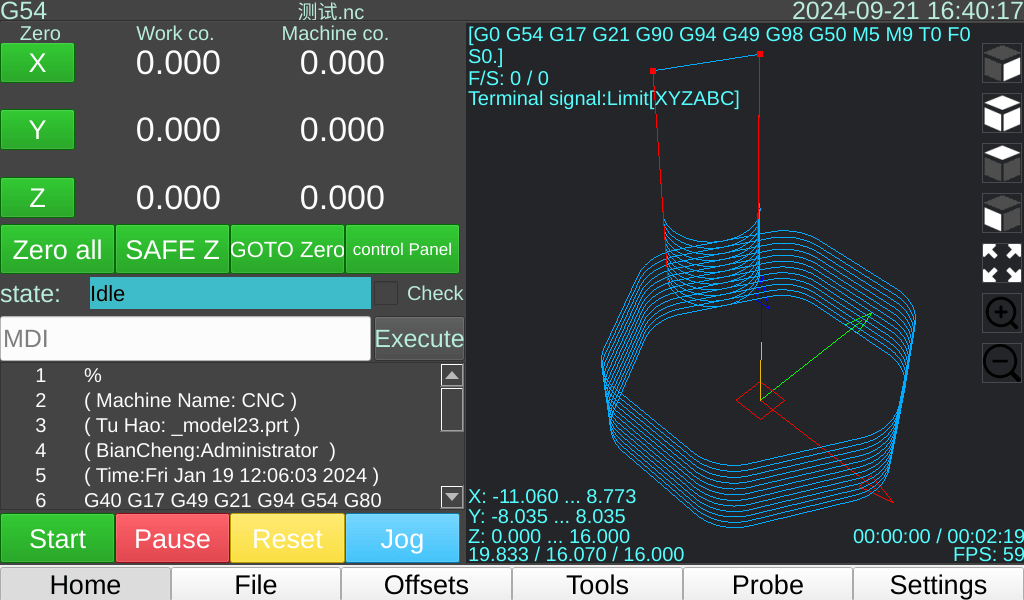
Click “Start” to begin processing.
Click “Pause” to pause processing.
Click “Reset” to end processing.
3D simulation of the program #
On the right side of the homepage is the 3D simulation of your G-code program, along with some other information.
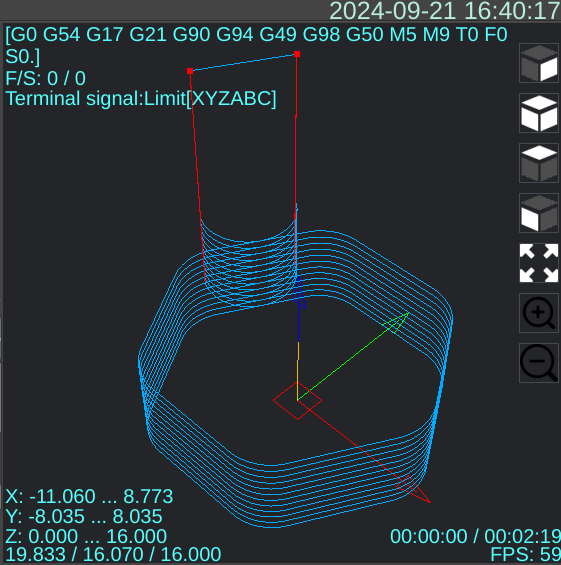
Perspective shift #
Clicking these buttons allows you to switch the 3D view and zoom in/out.

Of course, you can also use your finger to rotate the view.
You can use two fingers to zoom in and out.
Touching the screen with three fingers simultaneously allows you to pan and drag it.
Other display information #
The top text displays the current G-code modal information, and below it are the statuses of some terminals.
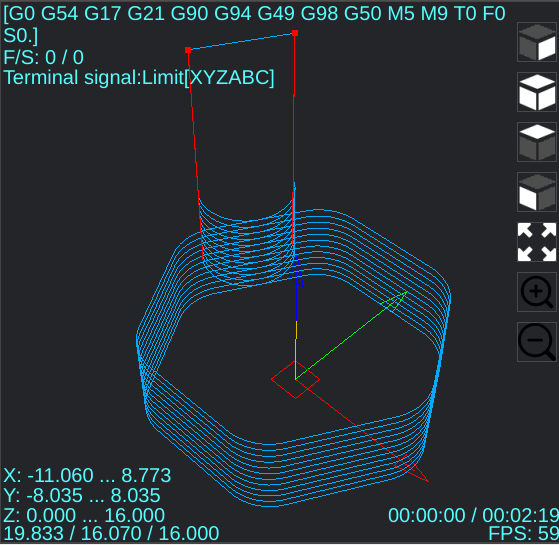
The bottom left corner shows the maximum travel distance of the G-code program, and the bottom right corner displays the estimated machining time and the current machining time.
Manually move the machine. #
You can click Jog or connect the handwheel to manually move the machine tool.
Click Jog again to exit this page.
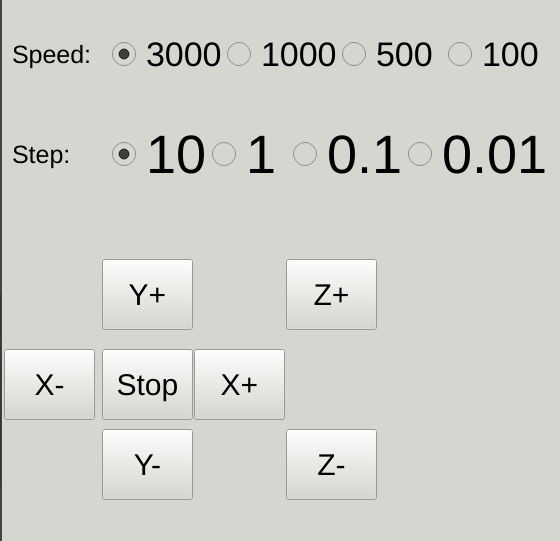
⭐: This page will display the corresponding axis movement buttons based on the number of axes you select.


